IPTV Stream Installation Guide: Watch UK Channels on Android, iOS, PC & Firestick
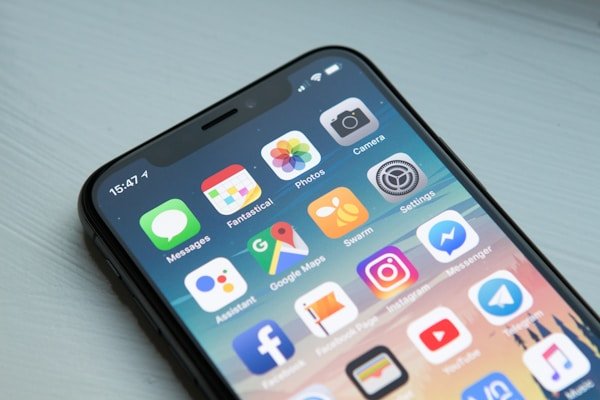
Setting up IPTV Stream on your phone, tablet, laptop and streaming stick has never been easier. This complete UK guide walks you through every step to configure IPTV Stream on Android, iOS, PC and Amazon Firestick — so you can enjoy BBC One, ITV, Channel 4, Sky Sports, BT Sport and thousands more channels wherever you are in the United Kingdom. Turn any device into a proper entertainment hub without paying Sky or Virgin Media prices of £60–£100+ per month.
Why Install IPTV Stream on Multiple Devices?
Maximum Viewing Flexibility
IPTV Stream across several platforms gives you:
- Seamless continuity: start on your PC, carry on on your phone
- Total mobility: your UK channels travel with you across England, Scotland, Wales and Northern Ireland
- Personal comfort: each device suited to a particular viewing habit
- Family sharing: everyone watches on their preferred screen
Optimised for Each Device Type
Each platform excels in different situations:
- Android: ideal for mobile and tablet streaming on the go
- iOS: polished experience on iPhone and iPad
- PC: perfect for multitasking and large monitors
- Firestick: the most popular way to bring IPTV to the living-room TV in UK homes
- Synchronisation: favourites and settings saved across devices
Prerequisites Before Installing IPTV Stream
Minimum Hardware Requirements
For a smooth IPTV Stream experience in the UK:
• Android 5.0 or later (API level 21+)
• 2 GB RAM minimum (4 GB recommended)
• 100 MB free storage
• Broadband connection of at least 10 Mbps
• iOS 12.0 or later
• iPhone 6s / iPad Air 2 or newer
• 150 MB available storage
• Stable connection of 15 Mbps+ recommended for HD sport
• Windows 10/11 or macOS 10.14+
• 4 GB RAM (8 GB recommended)
• Dual-core processor 2.0 GHz minimum
• Graphics card compatible with hardware decoding
• Fire TV Stick (2nd gen or later) or Fire TV Cube
• HDMI port on your television
• Home Wi-Fi or Ethernet adapter
• 10 Mbps minimum; 25 Mbps+ for 4K content
What You Will Need
Before installing IPTV Stream, make sure you have:
- Active subscription: choose a reliable UK-friendly plan from around £27.99 for six months or try a 7-day test for £5.99
- Login credentials: username, password and server URL (Xtream) or M3U playlist link
- Stable broadband: speed matched to your preferred quality (HD on 10–15 Mbps, 4K on 25 Mbps+)
- Compatible player apps: recommended IPTV players listed below for each platform
Installing IPTV Stream on Android
1Choose Your Android App
The best IPTV Stream players for Android in the UK:
IPTV Smarters Pro:
- Modern, intuitive interface
- Full M3U and Xtream Codes support
- Built-in electronic programme guide (EPG)
- Robust parental controls
Perfect Player:
- Deep customisation options
- Optimised performance on mid-range phones
- Full EPG support
- Set-top-box style layout
2Install from Google Play Store
- Open Google Play Store on your Android phone or tablet
- Search for "IPTV Smarters Pro"
- Tap "Install" and wait for the download to finish
- Launch the app once installation is complete
3Configure IPTV Stream on Android
Initial Setup:
- Select "Login with Xtream Codes API"
- Enter your IPTV Stream details:
Name: Any label you like (e.g. "My IPTV Stream")
Username: Provided after purchase
Password: Your subscription password
URL: Server address from IPTV Stream - Tap "Add User" to confirm
- Wait for your UK channel list to synchronise
4Android Optimisation Tips
Recommended Settings:
- Video quality: auto-adjust to match your broadband speed
- Decoder: hardware decoding where supported for smoother playback
- Buffer: 30 seconds to reduce interruptions during live sport
- Aspect ratio: 16:9 for most UK broadcast content
Installing IPTV Stream on iOS (iPhone/iPad)
1Compatible iOS Apps
GSE Smart IPTV (Recommended):
- Works on iPhone and iPad
- Native iOS interface
- AirPlay and Chromecast support
- iCloud sync for playlists
IPTV Player Pro:
- Designed specifically for iOS
- Optimised performance on Apple silicon
- Picture-in-Picture on iPad
- Siri Shortcuts integration
2Download from the App Store
- Open the App Store on your iPhone or iPad
- Search for "GSE Smart IPTV"
- Tap "Get" and authenticate with Face ID or Touch ID
- Wait for the download to complete
- Find the app on your home screen
3Configure IPTV Stream on iOS
Xtream Codes Method:
- Launch GSE Smart IPTV and tap "+"
- Select "Xtream Codes Login"
- Fill in your IPTV Stream information:
Nickname: "IPTV Stream" (display name)
Server URL: Your IPTV Stream server address
Username / Password: Your personal credentials - Tap "Save" and wait for channels to load
- Open the "Live TV" tab to browse UK channels
Alternative M3U Method:
- Select "Remote Playlist M3U"
- Paste the M3U URL provided by IPTV Stream
- Add the EPG URL for the programme guide
- Save and allow the playlist to sync automatically
4iOS Customisation
iPhone and iPad Optimisations:
- AirPlay: stream to Apple TV with one tap
- Picture-in-Picture: watch while using other apps on iPad
- Siri: create shortcuts such as "Open IPTV Stream"
- Control Centre: quick access to playback controls
Installing IPTV Stream on PC (Windows/Mac)
1Recommended PC Applications
VLC Media Player (Free):
- Universal, reliable player
- Native IPTV stream support
- Available on Windows, Mac and Linux
- Highly customisable
Kodi with IPTV Add-on:
- Full media centre experience
- Customisable interface
- IPTV Stream add-on support
- Ideal for a home cinema setup
IPTV Smarters Pro (PC Version):
- Dedicated IPTV interface
- Multi-device synchronisation
- Advanced features and favourites
- Clean, modern design
2Install VLC for IPTV Stream
Download and Installation:
- Visit videolan.org in your browser
- Click "Download VLC" for Windows or Mac
- Run the installer
- Follow the standard setup wizard
- Launch VLC when installation finishes
3Configure IPTV Stream in VLC
Add an M3U Playlist:
- Open VLC Media Player
- Go to "Media" → "Open Network Stream" (Ctrl+N on Windows)
- Paste your IPTV Stream playlist URL in the "Network" tab
- Click "Play" to load UK channels
- Save via "Media" → "Save Playlist" for quick access
Advanced PC Settings:
- Network caching: 3000 ms to reduce buffering
- Hardware decoding: enabled to lower CPU usage
- Interface: choose a skin suited to large screens
- Shortcuts: customise keyboard controls
4Install Kodi for IPTV Stream
Kodi Setup:
- Download Kodi from kodi.tv
- Install on your PC as normal
- Open Kodi and go to "Add-ons"
- Install "PVR IPTV Simple Client" from the official repository
Configure the IPTV Add-on:
- Enable PVR IPTV Simple Client
- Configure:
M3U Play List URL: Your IPTV Stream link
XMLTV URL: Electronic programme guide URL
Cache: Enabled for better performance - Restart Kodi to apply changes
- Open "TV" to browse your UK channels
Installing IPTV Stream on Amazon Firestick
The Amazon Firestick is one of the most popular IPTV devices in British homes — an affordable way to turn any HDMI television into a smart TV without a costly Sky or Virgin Media box rental of £5–£13 per month.
1Prepare Your Firestick
- Plug the Firestick into an HDMI port and complete Amazon account setup
- Go to Settings → My Fire TV → Developer options
- Enable Apps from Unknown Sources (or grant the relevant permissions on newer Fire OS versions)
- Connect to your home Wi-Fi (5 GHz recommended for HD sport)
2Install an IPTV Player
- Install the Downloader app from the Amazon Appstore
- Use Downloader to sideload IPTV Smarters Pro or another recommended player
- Alternatively, search the Appstore for compatible IPTV apps where listed
- Launch the player once installed
3Add Your IPTV Stream Credentials
- Open your IPTV player on the Firestick
- Choose Xtream Codes login or M3U URL
- Enter the details sent after your IPTV Stream purchase:
Server URL: Your IPTV Stream endpoint
Username / Password: Subscription credentials
EPG URL: Programme guide (if provided separately) - Wait for channels to populate
- Add Sky Sports, BT Sport and BBC One to favourites for quick access on match days
4Firestick Optimisation Tips
- Use a wired Ethernet adapter for the most stable Premier League and rugby streams
- Clear app cache monthly to keep Firestick performance snappy
- Disable unused screensavers and background apps that consume bandwidth
- Restart the Firestick before major live events to free memory
Multi-Device Synchronisation with IPTV Stream
Unified User Profiles
Most IPTV Stream plans include:
- Family accounts: up to five simultaneous connections on Premium plans
- Cloud sync: shared favourites and watch history
- Resume playback: pick up where you left off on another device
- Saved preferences: settings applied automatically across platforms
Centralised Management
Web Dashboard:
- Manage all connected devices from a browser
- Monitor usage in real time
- Adjust settings remotely
- Receive notifications across your devices
Network Optimisation for IPTV Stream in the UK
Home Network Setup
Wi-Fi Improvements:
- 5 GHz band: less congested than 2.4 GHz in dense urban areas
- Optimal channels: 36, 44, 149, 157 to reduce interference
- QoS enabled: prioritise IPTV Stream traffic on your router
- Reserved bandwidth: allocate at least 50% for streaming during peak hours
Router Settings:
- MTU: 1500 to avoid packet fragmentation
- DNS: Google (8.8.8.8) or Cloudflare (1.1.1.1)
- UPnP: enabled for automatic device discovery
- Port forwarding: only if required by your IPTV Stream plan
Connection Testing
Essential Checks:
- Speed test: use speedtest.net (minimum 25 Mbps for 4K)
- Latency: under 50 ms to avoid noticeable delay
- Stability: no speed drops for 10 consecutive minutes
- Packet loss: below 1% is acceptable
Troubleshooting IPTV Stream Installation
Common Android Issues
App keeps closing:
- Clear the IPTV app cache
- Restart your Android device
- Check app permissions are granted
- Update to the latest app version
Channels not loading:
- Verify your IPTV Stream credentials
- Test your broadband connection
- Try an alternative DNS server
- Contact IPTV Stream support via WhatsApp
iOS-Specific Solutions
Certificate error:
- Check date and time are set to UK (GMT/BST)
- Restart the IPTV app
- Reinstall the app if the problem persists
Poor performance:
- Close background applications
- Free up storage space
- Restart your iPhone or iPad
PC Troubleshooting
VLC will not play streams:
- Update VLC to the latest version
- Verify your IPTV Stream playlist URL
- Temporarily disable antivirus or firewall
- Test with a wired Ethernet connection
Firestick Troubleshooting
Buffering on live sport:
- Switch to a lower quality setting during peak evening hours
- Restart your router before kick-off
- Use Ethernet instead of Wi-Fi where possible
- Try an alternative server if your plan offers several endpoints
Security and Privacy
Protecting Your Data
Best Practices:
- VPN recommended: encrypt your IPTV traffic on public networks
- Strong passwords: change them periodically
- Two-factor authentication: enable where supported
- Public Wi-Fi: avoid streaming IPTV on unsecured hotspots
Choosing a Trustworthy Provider
What to Verify:
- Transparent billing in pounds sterling (£)
- Responsive UK customer support
- Established reputation in the IPTV community
- Clear refund or trial policy — such as a 7-day test for £5.99
Maintenance and Updates
Regular Maintenance
Monthly Tasks:
- Check for IPTV app updates on all devices
- Clear cache to maintain performance
- Test streaming quality on Android, iOS, PC and Firestick
- Back up your custom channel lists and favourites
Looking Ahead
Upcoming Features:
- 8K streaming: prepare higher-bandwidth connections
- AI recommendations: personalised content suggestions
- Voice control: integration with Alexa on Firestick and Siri on iOS
- Improved catch-up: longer replay windows for UK programmes
Platform Performance Comparison
Detailed Comparison Table
| Criteria | Android | iOS | PC | Firestick |
|---|---|---|---|---|
| Ease of installation | ⭐⭐⭐⭐ | ⭐⭐⭐⭐⭐ | ⭐⭐⭐⭐ | ⭐⭐⭐⭐ |
| Maximum video quality | 4K HDR | 4K HDR | 8K | 4K HDR |
| Features | Comprehensive | Premium | Advanced | Living-room focused |
| Portability | Excellent | Excellent | Limited | TV only |
| Performance | Very good | Excellent | Optimal | Very good |
| Customisation | High | Moderate | Maximum | Moderate |
Recommendations by Use Case
- Daily mobile viewing: Android with IPTV Smarters Pro
- Premium on-the-go experience: iOS with GSE Smart IPTV
- Home cinema and multitasking: PC with Kodi configured
- Living-room TV: Amazon Firestick with IPTV Smarters Pro
- Maximum flexibility: install on all four platforms
Conclusion
Installing IPTV Stream on Android, iOS, PC and Firestick gives you unlimited access to your favourite UK channels on every screen in the house. This guide has covered each step — from choosing the right player to optimising your home broadband for buffer-free Premier League, rugby and drama nights.
IPTV Stream genuinely transforms how British households watch television. Whether you prefer Android on the commute, the polished iPad experience, a full home cinema on PC, or the simplicity of a Firestick in the lounge, the setup is straightforward and far more affordable than traditional pay-TV contracts costing £400–£600 more per year.
Synchronisation across devices ensures your entertainment never stops when you switch screens. With the right network settings and regular maintenance, your IPTV Stream installation will deliver professional-quality streaming for years to come.
Do not wait to turn every device into a UK entertainment hub. Follow this guide step by step and see why IPTV Stream is changing how viewers across the United Kingdom watch television. Start your installation today!